
A beautiful site is not enough: to sell, the design of your Odoo online store must inspire trust, guide the visitor, and showcase your products. Good news, all this is possible with Odoo by default, without development.
These tips are from the Odoo talk "Improve your eCommerce design in Odoo." We have grouped them into six steps, from visual identity to SEO. For an overview of the features, also read our article on the new Odoo eCommerce features.
A store that sells inspires trust, guides the visitor, and showcases the products. All this can be adjusted from the editor.
01Lay the foundations: a coherent visual identity
1 · Define your color palette
It all starts in the Site Editor Theme. Choose a primary color and a secondary color. If you have a graphic charter, directly paste the color codes. Otherwise, a new tool allows you to import your logo and select the right color with one click.
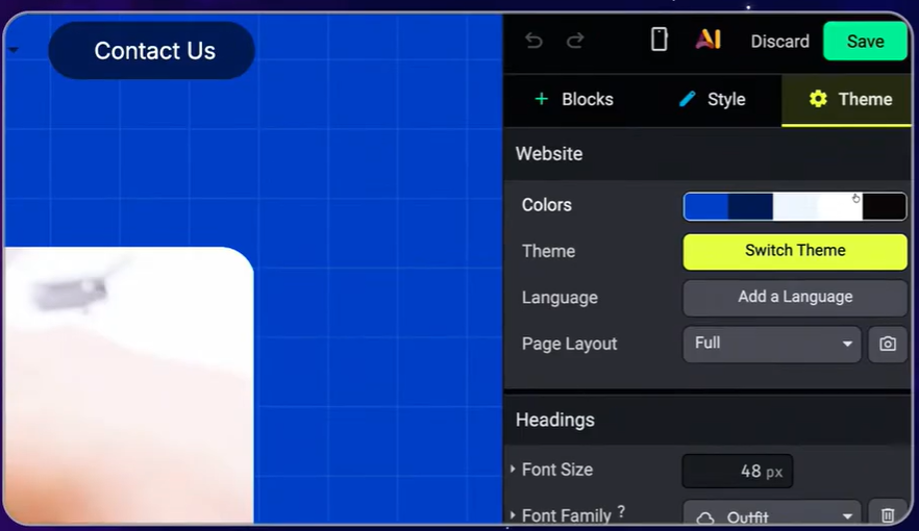
The Theme tab of the editor: primary and secondary colors, to be entered or taken directly from your logo.
2 · Limit yourself to two fonts
One for titles, one for text. This is enough to position your brand while keeping a readable site. You can import your own font or choose one from the Google Fonts library, directly connected to Odoo.
3 · Multiply the call-to-action buttons
The advice seems simple, but it's the most common mistake: there aren't enough buttons on websites. Guide your visitors to the store, to a B2B account request, or to discover your services.
Keep a consistent style everywhere: a solid primary button, and a secondary button with an outline to mark the hierarchy of actions.
02Make navigation easier in your store
1 · Activate the search bar
Essential as soon as your catalog grows. Just click on the header and activate the search icon.
2 · Create a mega menu
Rather than a simple menu, check the option mega menu to display all your categories in a large panel, with or without images depending on the chosen template. Each product category automatically has its own page in Odoo: just link it.
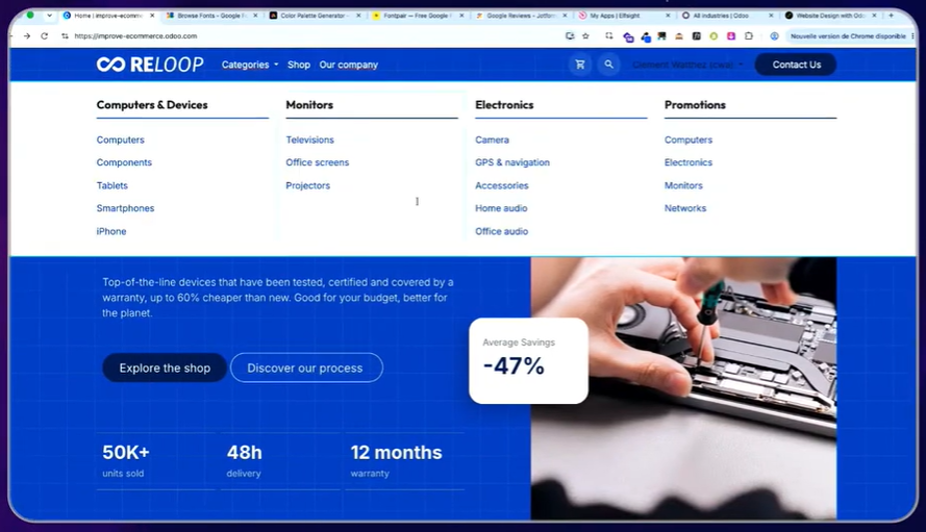
A mega menu displays all your categories in a large panel, with or without images.
3 · Take care of your footer
Often overlooked, it welcomes your secondary pages such as the terms and conditions or the B2B access request. Choose a template that displays the logos of payment methods: it is a real trust lever for your visitors, and therefore for conversion. These logos are automatically linked to the payment methods configured in Odoo.
03Optimize the shop page
1 · Choose the right grid
Four columns on desktop and two on mobile is the recommended configuration. To access the options, remember to click directly on the product grid in edit mode.
2 · Standardize your product photos
Same angle, same format, same background, ideally white. And if your photos are not perfect, the AI integrated into Odoo can now replace the background of the image with pure white, or even generate a view from another angle to enrich your gallery.
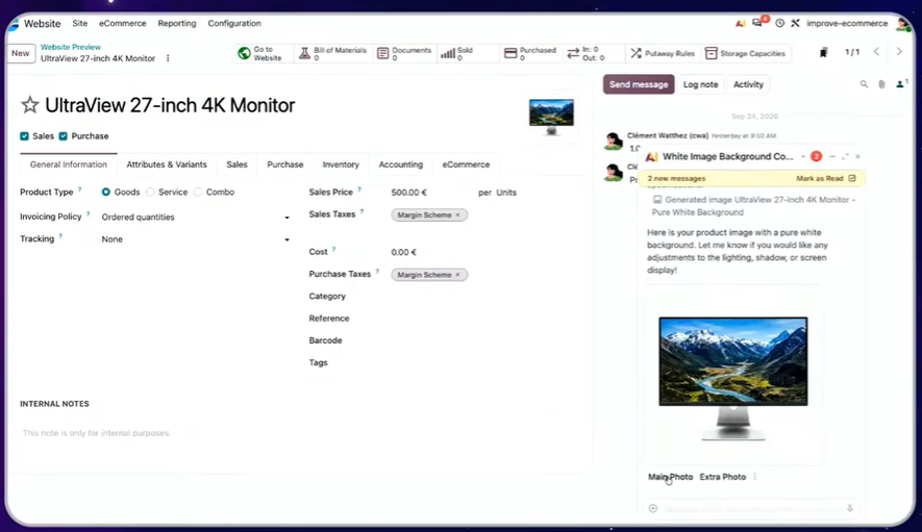
Odoo's AI replaces the background of a product photo with pure white, or generates a view from another angle.
3 · Activate the secondary image on hover
When the visitor hovers over a product, a second photo appears. A detail that makes the shop much more lively.
4 · Add the "Add to cart" button on the grid
Especially useful in B2B, where customers often order multiple products without opening each sheet.
5 · Use ribbons
New, out of stock, promotion: ribbons and badges catch the eye on the right products. You can create your own.
04Enhance your product sheets
1 · Choose the right display of variants
Default radio buttons are not always the most practical. In the attributes, opt for example for pill display for storage capacities, or for color pills. You can even associate an image with a pill, for a pattern or texture.
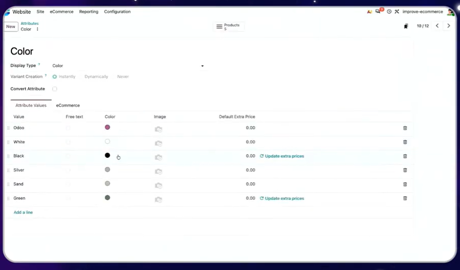
Capacity pills or color pills: choose the display of variants suitable for each attribute.
2 · Add videos
Since the last version, you can integrate a video hosted on Google Drive, in addition to YouTube or Dailymotion.
3 · Reuse your content blocks
Save a block and drop it in the common area: it will display on all your product sheets at once.
4 · Activate customer reviews
Rarely activated, they reassure your visitors. For technical products, also consider displaying specifications, and offering alternative products in a carousel.
05Go further with content
1 · Get inspired by industry-specific sites
Odoo now offers complete sites designed by its design team, for example for a refurbished electronics store. If you do not wish to install the sector in your database, open it in a test database and replicate the design: everything is 100% standard. For physical and online commerce, also see our approach to the ERP retail with Odoo.
2 · Integrate external services
Google reviews, store locator, interactive calculator: thanks to the integration block, you can add features offered by third-party services to your site, without development.
06Think mobile and SEO
1 · Check your mobile version
Odoo is responsive by default, but always check the rendering. You can hide a block on mobile and create an adapted version, for example a different banner.
2 · Optimize your SEO
Odoo's native tool tells you if each page is well optimized, and a button allows you to complete the SEO information with AI.
💡 The Nalios perspective
All these settings are standard. This is a real advantage: a design built with Odoo's editor, without specific code, follows your database during version upgrades without theme redevelopment.
Our recommendation: start with the settings that affect all pages (palette, fonts, buttons, footer), then the shop page. Reserve development only for needs that the editor does not really cover.
Still hesitating about the platform? Our comparison Odoo vs PrestaShop for e-commerce helps you decide.
What to remember
The design of an Odoo store that sells, in four points.
Give your online store a fresh look
Our experts guide you, from design to launching your Odoo store.
Let's talk about your projectSources: Odoo talk "Improve your eCommerce design in Odoo," official Odoo eCommerce documentation.
Key questions
Answers to the most frequently asked questions about the design of an Odoo online store.
No, not for the essentials. Colors, fonts, menus, product grid, ribbons, variants, and customer reviews can be configured by default from the site editor. Development remains useful for very specific needs.
Two: one for titles, one for text. You can import your own font or choose one from the Google Fonts library, connected to Odoo.
Four columns on computer and two on mobile. The options can be found by clicking directly on the product grid in edit mode.
With Odoo's AI, which can replace the background of an image with pure white or generate a view from another angle. Then keep the same angle, the same format, and the same background for the entire catalog.
Odoo's native SEO tool indicates whether each page is well optimized. A button then allows you to complete the SEO information with AI.